|
You can play and listen to recorded messages, and save them in Inbox. When you want to play a message, select one of the listed messages and then click play botton in the bottom section.
You can input a title of each message.
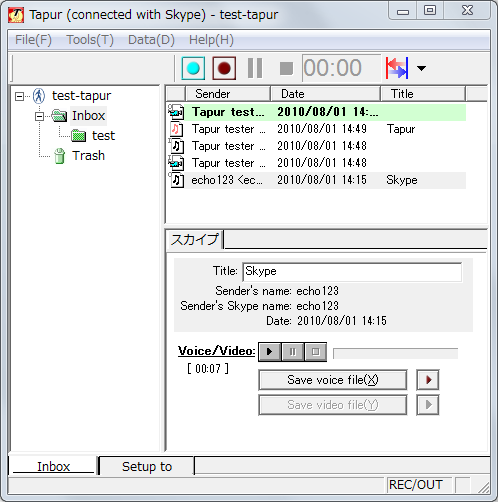
[Message icons]
With a top icon of each message, you can distinguish a kind of a message.
+Voice message recorde by answering machine

+Voice message recorde on line

+Video message recorde on line

"I" on left top corner of icon means incoming call. "O" means outbound call.
The message with out icon means answering machine without recording.
[Save voice/video file]
When you save recording file, click each button "Save voice file" or "Save movie file".
You can export a audio file as in wave, OggVorbis, mp3 format (*).
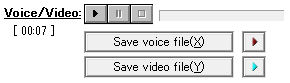
*If you want to output the mp3 format, WindowsMediaPlayer10 more is required.
[Play by an external application]
Voice/Movie files are managed in WAV / MP3 / AVI format each.
You can play them by prescribed application of each data format on the OS, when you click the following buttons. WindowsMediaPlayer, RealPlayer, QuickTime, ...

[Operation of messages]
You can [Call sender], [Delete message] and more by selecting a message and right-clicking it.
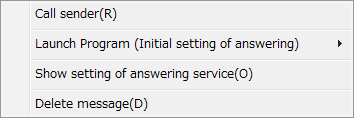 
[Call sender] : make skype call.
[Show setting of answering service] : show "Setup to Answer" according to the message which it' s recorded by answering machine.
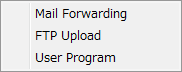
[Launch Program (Initial setting of answering)] : run the exension program to recorded message. The extension program of "Initial setting of answering" are used. (ex, You can mail the recorded message.)
[Delete message] : move messages to trash box.
[Create new folder]
When you create a new folder, click the right button of "Inbox" folder tree, and choose "Create new folder".

[Trash box]
Deleted messages move to "Trash" box.
You can restore the deleted data by menu "Return it to where it was", because data are not yet deleted in a hard disk.
You can't restore the data which were deleted from "Trash" box so that it is completely deleted from a hard disk.
|