|
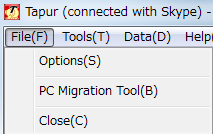
You can change various setting of Tapur. Choose [File (F) ], and click [Options(S) ].
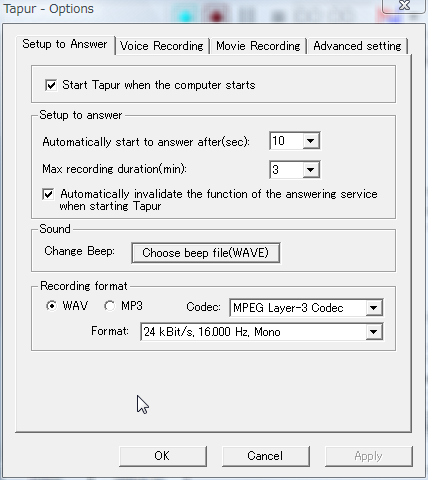
[Setup to Answer]-[Start Tapur when the computer starts]
Setup for start or not Tapur when PC startup.
[Setup to Answer]-[Setup to Answer]
Setup for answering machine function.This setting is common with all answering machine function.
+"Max recording duration" is applied in the case of a voice recording at the time of answering machine.
+When you want to invalidate answer machine at the time of start of Tapur, check "Automatically invalidate the function of the answering service when starting Tapur".
[Setup to Answer]-[Sound]
You can change Beep sound (WAV file). This setting is common with all answering machine function. [Setup to Answer]-[Recording format]
Setup for the recording format of the audio file.
If you want to output the mp3 format, WindowsMediaPlayer10 more is required. And if you use the LAME MP3, you can download the installler from [Help] - [Lame MP3 ACM codec].
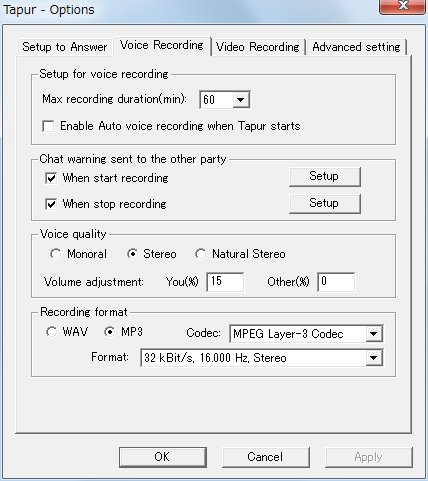
[Voice Recording]-[Setup for voice recording]
+"Max recording duration" is applied in the case of a voice recording on line. This is not for answering machine function.
+When you want to invalidate auto recording at the time of start of Tapur, check Enable Auto voice recording when Tapur starts".
[Voice Recording]-[Chat warning sent to the other party]
Tapur display a warning message to caller at the time of start time and the end of recording. Messages are reset to system default by clicking "Reset" button.
[Voice Recording]-[Voice quality]
+You can choose sound quality from "Monoral", "Stereo", "Natural stereo". At the time of answering machine recorded voice is always monoral.
"Stereo" recording completely divides a sound of yourself and caller on a truck of right and left. When you wants to edit recorded file later, you had better to use this option.
"Natural stereo" recording creates natural sound than "stereo" recording, but is not suitable to edit recorded file.
+"Volume adjustment" change the volume level of recorded file. You had better to use this function when the volume level of your voice doesn't match with the other voice. The volume of speakers doesn't chenge when recording. [Voice Recording]-[Recording format]
see [Setup to Answer]-[Recording format].
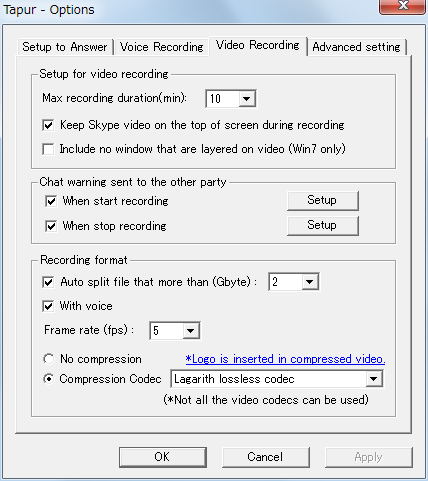
[Video Recording]-[Setup for video recording]
+"Max recording duration" is applied in the case of a video recording on line.
+The video recording is realized by capturing screen of Windows. Therefore the state will be just recorded when the other application shut out the screen of Skype.Tapur locks the screen of Skype automatically on the front to avoid this while you record movie. You can cancel this lock by "Keep Skype video on the top of screen during recording" check.
+"Include no window that are layered on video" : record skype video only without "Keep Skype video on the top of screen during recording" check. This function is effective for windows 7 only. [Video Recording]-[Chat warning sent to the other party]
Tapur display a warning message to caller at the time of start time and the end of recording. Messages are reset to system default by clicking "Reset" button.
[Video Recording]-[Recording format]
+"Auto split file that more than" : You can split huge recorded file automatically.
+"With voice" : create a video file with voice. If not, video file without voice and audio file created.
+You can choose compression format of recorded video file.
If you want to edit recorded file, choose "non-compression".
If you want to use compression codec, you had better to use Lagarith lossless codec or UT Video Codec installed by Tapur installer.
Compression codec list depends on your PC environment (OS, installed application, etc...).
You can't use all of codecs displayed on the list. Some formats is immpossible to use. *Recording with compression codec need license code. Without license code you can record video by compression codec with Tapur logo.
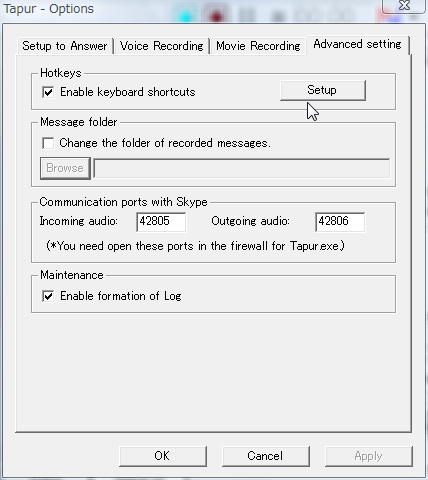
[Advanced setting]-[Hotkeys]
You can use global shortcut key. You can use the basic functions of Tapur by your keyboard only.
[Advanced setting]-[Message folder]
Usually Tapur use C drive to store message files. But you can change the message folder when your C drive is less. [Advanced setting]-[Commucation ports with Skype]
Tapur communicate with Skype by tcp ports when recording. You can change these ports here.
If the firewall is enable on your OS, you need open these ports in the firewall for Tapur.exe. [Advanced setting]-[Maintenance]
You can output log file or not. (look FAQ [Trouble Report ] .)
|